
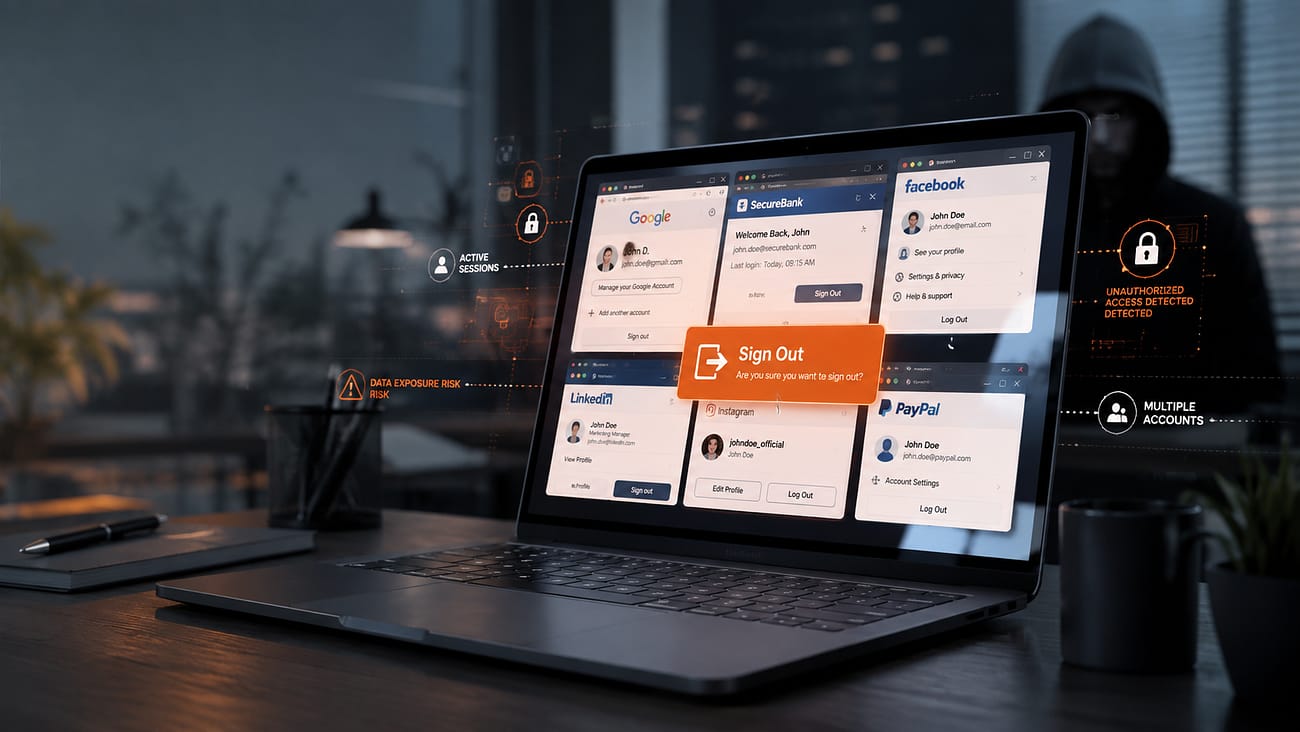
Staying signed in to your favorite websites makes everyday computing easier. Open your browser, visit your email, shopping account, cloud storage, banking website, or social media account, and you can continue exactly where you left off.
It saves time and avoids entering your password every time.
But there is a security side to that convenience.
If a Windows PC is shared, lost, stolen, left unlocked, or compromised by malware, an active website session can provide another opportunity for unauthorized access. Logging out when you are finished is a simple habit that can reduce that risk, especially when you are using a device that other people may access.
It is not the only security measure you need, but it is one useful layer in a broader Windows security routine.
What Happens When You Log In to a Website?
When you sign in to a website, the service needs a way to remember that you have already authenticated.
Websites commonly use session cookies or other session mechanisms for this purpose. Instead of asking you to enter your password on every page, the browser keeps information that allows the website to recognize your authenticated session.
Think of it as a temporary digital pass.
As long as that session remains active, you may be able to access your account without signing in again.
That is convenient on your personal Windows computer.
However, leaving an account signed in can become a concern when someone else gains access to the device or when the device itself becomes compromised.
Why Can an Active Session Be a Security Risk?
Imagine using a computer in a library, office, hotel, school, or another shared environment.
You sign in to your email, finish what you need to do, and close the browser window without signing out.
The next person who uses that computer may potentially find an active account session, depending on how the website and browser handle authentication.
The same concern can arise if:
- Your laptop is lost or stolen
- Someone else has access to your Windows account
- You leave your computer unlocked
- A device is shared with family members or colleagues
- Your browser profile is accessible to another person
- Malware compromises the device or browser environment
The risk is not limited to one type of account.
An active session could potentially expose access to email, social media, shopping, cloud storage, work platforms, or other services.
What Is Session Hijacking?
Session hijacking is a type of attack in which an attacker obtains a valid session identifier and attempts to use it to impersonate the legitimate user.
In simple terms, if a session credential is stolen, an attacker may attempt to use that credential instead of your username and password.
This is one reason session security matters.
Attackers can use different techniques to obtain information from compromised environments, including malware, phishing, unsafe browser extensions, compromised networks, or vulnerabilities in applications and websites.
Logging out does not prevent every form of session hijacking, but ending sessions when they are no longer needed can reduce the window in which an unattended session could be misused.
When Should Windows Users Always Log Out?
You do not necessarily need to sign out of every website every few minutes on your personal, properly secured computer.
However, there are situations where logging out should become a routine.
Shared Windows Computers
If other people use the computer, avoid leaving personal accounts signed in.
This is particularly important for email, financial accounts, cloud storage, work systems, and other services containing sensitive information.
Public Computers
Public computers should always be treated as untrusted environments.
After using one, sign out of your accounts and avoid allowing the browser to remember your login information.
Work or School Computers
A Windows computer at work or school may be used by multiple people or managed by an organization.
If you have accessed personal accounts, make sure you sign out before leaving the device.
Financial and Sensitive Accounts
Banking, payment, healthcare, tax, and other sensitive accounts deserve additional caution.
Once you have finished using them, signing out is a simple extra step.
Before Giving Away or Selling a Windows PC
If you are selling, donating, or returning a Windows device, signing out of websites is not enough.
You should also properly remove your personal accounts and securely reset the device according to the appropriate operating-system and manufacturer guidance.
Closing a Browser Tab Is Not the Same as Logging Out
This is an easy distinction to overlook.
Closing a browser tab simply closes what you were viewing.
It does not necessarily tell the website that you have ended your authenticated session.
Depending on the service, browser settings, cookies, and session policies, you may still be recognized when you return.
That is why sensitive accounts should be explicitly signed out when you are finished, particularly on shared or untrusted devices.
What About the “Remember Me” Option?
The “Remember me” or “Keep me signed in” option can make logging in more convenient.
On your own Windows PC, this may be reasonable when the device is properly secured with a strong Windows login, automatic locking, and other security measures.
On a shared or public computer, however, it is better to avoid persistent login options.
Before selecting “Remember me,” consider who else could access the device.
Convenience should not come at the expense of account security.
Use a Password Manager to Make Secure Logins Easier
One reason people avoid logging out is simple: they do not want to enter passwords repeatedly.
A password manager can make this much easier.
Instead of remembering dozens of passwords, you can use unique credentials for different accounts and retrieve them securely when needed.
A good account-security routine can include:
- Using unique passwords for important accounts
- Using long and difficult-to-guess passwords
- Storing passwords with a reputable password manager
- Enabling multifactor authentication where available
- Avoiding password reuse
- Checking account activity for unusual logins
These measures work together.
Logging out is one layer. Strong authentication is another.
What If You Forgot to Log Out?
It happens.
Maybe you used a hotel computer, borrowed a friend’s laptop, or accessed an account on another Windows PC and forgot to sign out.
Do not panic. Start by checking whether the service provides an option to manage active sessions or connected devices.
Depending on the website, you may be able to:
- Sign in from your own trusted device.
- Open the account’s security settings.
- Review active sessions or connected devices.
- Sign out of unfamiliar or unnecessary sessions.
- Change your password if you believe someone else may have accessed the account.
- Enable multifactor authentication.
- Review recent account activity.
For accounts containing financial, business, healthcare, or other sensitive information, take action promptly.
Logging Out Is Only One Part of Windows Security
Account security and device security are closely connected.
Even if you use strong passwords and remember to log out, a compromised Windows PC can create additional security concerns.
Malware may attempt to steal information, interfere with applications, access sensitive files, or perform other unauthorized actions.
That is why Windows security should be approached in layers.
Keep Windows and your applications updated, use strong authentication, be careful with links and downloads, avoid suspicious browser extensions, and use trusted security software to monitor and protect the device.
A good security routine is not about relying on one feature. It is about reducing opportunities for attackers at different points.
A Simple Windows Account-Security Routine
Before finishing your work on a Windows PC, take a few seconds to ask:
- Did I sign out of sensitive websites?
- Did I close accounts I no longer need?
- Did I avoid saving passwords on a shared computer?
- Is my Windows device locked when I step away?
- Is multifactor authentication enabled for important accounts?
- Are Windows and my applications up to date?
- Is my security software active?
- Do I recognize the devices currently connected to my important accounts?
These small habits can make everyday computing safer without making it unnecessarily complicated.
How Antivirus Protection Fits Into the Picture
Logging out protects against one category of risk: unnecessary active account sessions.
Antivirus protection addresses a different part of the security picture.
For Windows users, security software can help identify and respond to malicious files, suspicious activity, malware, and other threats that may put the device or its data at risk.
This is particularly important because a security-conscious user can still encounter a malicious download, attachment, website, or other threat during normal online activity.
At Actipace, our approach to Windows security focuses on proactive protection and data security rather than relying only on reacting after damage has occurred.
Actipace offers three protection levels — Basic Defense, Internet Security, and Total Security — allowing Windows users to choose protection according to their needs.
The broader goal is simple: combine safer online habits with technology designed to help protect the Windows environment and the data stored on it.
Final Thoughts
Logging out of websites may seem like a small step, especially when staying signed in is so convenient.
But cybersecurity is often built from small decisions.
Signing out of sensitive accounts on shared devices, using strong and unique passwords, enabling multifactor authentication, keeping Windows updated, and maintaining reliable security protection can collectively make it harder for attackers to take advantage of your accounts or devices.
You do not need to make online security complicated.
Sometimes, it starts with something as simple as remembering to click Log Out.
Actipace continues to focus on proactive Windows security, helping users build a safer digital environment where protecting the device and protecting the data work together.
